

Settings and your account
Everything that belongs to you rather than to a dashboard lives behind the account menu at the right of the top bar: your initials in a round avatar, with your name beside them on a wider screen. It holds four things:
- Settings, the page described below.
- Keyboard shortcuts, which opens the shortcuts section of Settings.
- Color scheme: Light, Dark or System. The command palette and the Appearance section change the same setting, and all three stay in step.
- Sign out.
The menu is the same at every screen width. Settings is also in the command palette.
Sections
Section titled “Sections”/settings opens on Account. Every section has its own address, so you can
bookmark one or send it to someone.
| Section | Address | What it holds |
|---|---|---|
| Account | /settings/account |
Your name, email and user id, the workspaces you can reach with your role in each, and what every role allows |
| Appearance | /settings/appearance |
Theme, whether the interface and charts animate, and patterns in charts |
| Preferences | /settings/preferences |
Time zone, 12 or 24 hour clock, the page you land on after signing in, how the dashboard list opens, and Explore’s live refresh, open queries and whether your conversations are kept |
| Local data | /settings/local-data |
What this browser remembers, with a way to clear each part |
| Keyboard shortcuts | /settings/shortcuts |
Every key binding, grouped by where it works |
| Workspaces | /settings/workspaces |
AI usage and limits. Listed only if you are a source-admin somewhere or a platform admin |
| AI context | /settings/ai-context |
What the model is told about each workspace: a glossary, metric definitions and example panels, and the composed prompt. Listed if you are an editor somewhere; only a source-admin can change it |
| API tokens | /settings/tokens |
Service-account tokens for scripts and pipelines. Listed only if you are a source-admin somewhere or a platform admin |
Account
Section titled “Account”Your name and email come from the identity provider at sign-in and are only
ever displayed. Roles come from your groups there, as described in
Authorization model, and a change takes effect
the next time you sign in. When the operator sets OIDC_ACCOUNT_URL, a
Manage your account link takes you to the provider’s own page for your
name, email and password.
The same information is available to scripts from GET /api/me.
Appearance
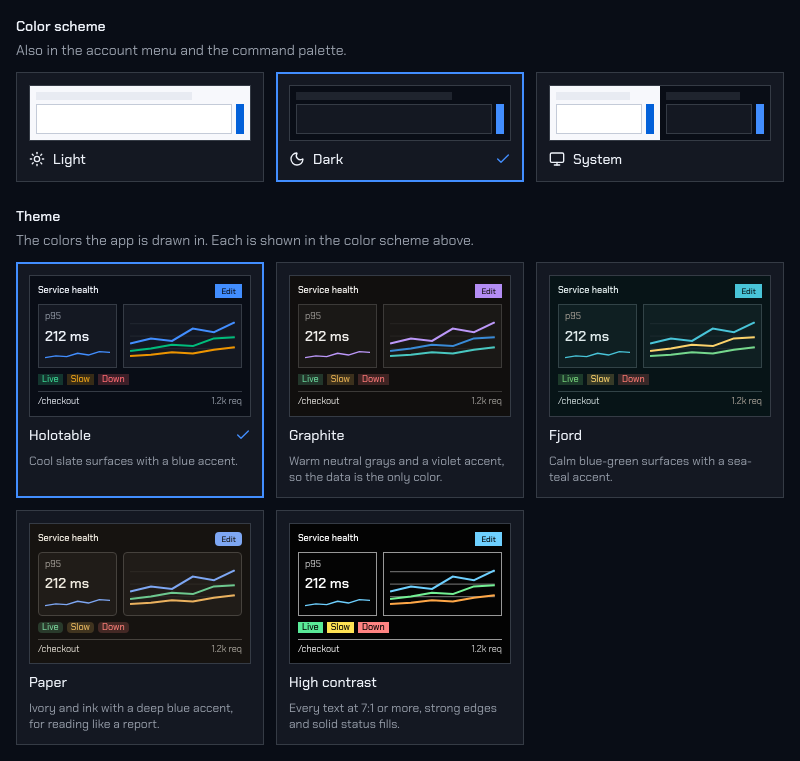
Section titled “Appearance”Color scheme is Light, Dark or System. Theme is the named set of
colors the scheme comes in: Holotable, Graphite, Fjord, Paper or High
contrast. The themes are a gallery. Each card draws a little of the app in
that theme, in the scheme chosen above it, and System shows light and dark
side by side. Arrow keys move between the cards and choose. Both settings are
also in the command palette. Both are kept in this browser and apply before
the page draws. An operator sets the theme a new browser starts with
(THEME_DEFAULT_PALETTE). Themes shows each one and what it
is for.
Motion has three choices. Follow system respects the operating system’s reduced-motion setting. Reduce stops transitions, entrances and slides, the theme crossfade, loading shimmer and chart animation whatever the system says: every change is a cut. Allow keeps them on, even when the system asks for less. Charts update in place either way.
Patterns in charts fills bars, pie slices, areas and other filled shapes with a pattern as well as a color, so series can be told apart without relying on color. It is off by default. Unlike theme and motion, which are kept in the browser, it is saved to your account and follows you to any device. A custom visual (a Vega-Lite panel) draws in colors only.
Preferences
Section titled “Preferences”Time zone is your browser’s zone by default. UTC or any named zone can be chosen instead. It changes how times are shown everywhere: dashboard cards, the time-range picker, chart axes and tooltips, and the live clock. Stored ranges are always UTC, and the server still decides the concrete window a query runs over, so two people in different zones looking at the same dashboard see the same data.
Start page is the dashboard list, Explore, or one dashboard you can view. If that dashboard is deleted or you lose access to it, you land on the list with a one-time notice instead.
Dashboard list defaults set the sort order and whether only your favorites are shown. A link that names a sort or filter still wins.
History turns each kind of recent on or off: recent prompts (with the source you last generated a dashboard from), recently viewed dashboards, and command palette history. All are on by default. Off means nothing is recorded, not merely hidden: the prompt boxes, the dashboard list’s Recent row and the palette stop writing, and turning one off also clears what this browser had. The switch follows you; the lists never leave the browser either way.
Explore sets the range a new conversation starts with, live refresh (off, 30s, 1m, 5m), whether every answer’s queries start open, and Keep my conversations. Turning that off asks first, then deletes every conversation kept for you; see Explore.
Local data
Section titled “Local data”Some things are kept in the browser on purpose and never sent anywhere: editor drafts, recent prompts (and the source you last generated a dashboard from), recently viewed dashboards, command palette history, and which setup hints you dismissed. The three kinds of recents can be turned off entirely under Preferences → History. This section lists each one, how much it holds and a button to clear it. Drafts are listed one by one and only your own are shown, even on a shared machine. Clear everything on this device asks for confirmation first.
Workspaces
Section titled “Workspaces”Shows each workspace’s model usage today against its daily token budget and per-minute request rate, and whether each limit comes from the environment, is overridden for that workspace, or is off. Source-admins see their own workspaces. Only platform admins can change an override, and the change applies to the next model request. See LLM rate limits and budgets.
AI context
Section titled “AI context”The model knows a source’s tables and columns and nothing else. Here a source-admin tells it the rest, per workspace: a glossary (what the team means by “latency”), metric definitions (how “error rate” is computed) and up to four example panels, each a request and the panel JSON that answers it. An example is checked against the IR and its SQL against the guard for its source before it can be saved, and the model is shown it only when generating against that source. Editors see the same page read-only, and anyone on it can show the composed system prompt for any of the workspace’s sources. See Workspace context.
Models, the server’s, each workspace’s and your own, have their own page in the main navigation: see Models. The Workspace model and Personal model sections that used to be here open it.
API tokens
Section titled “API tokens”Mint and revoke service-account API tokens for the workspaces you administer: a name, a role (viewer or editor, never more) and an expiry. A token is shown once. See Service-account API tokens.
What follows you, and what stays on this device
Section titled “What follows you, and what stays on this device”| Setting | Stored | Why |
|---|---|---|
| Time zone, clock, start page, dashboard list defaults, Explore defaults, which recents to keep | Server, per user | They are choices about you, and should survive a new laptop or a cleared browser |
| Theme, motion | This browser | They must apply before the page first draws, which cannot wait for the server. A device-specific choice is often what people want anyway |
| Drafts, recents, dismissed hints | This browser | They describe what you did on this device |
| Explore conversations | Server, per user, readable only by you | So a question can be continued on another device. Never a result row: panels run again when opened. Bounded by CHAT_CONVERSATIONS_MAX and the chat history limits; Keep my conversations off stores none and deletes what was kept |
| Whether Explore’s side panel is closed | This browser | A layout choice for this screen |
Preferences are stored per user, never per workspace, and nobody else’s can be read or changed through the API, including by a platform admin.